

How to Upload Your Final Presentation Slides
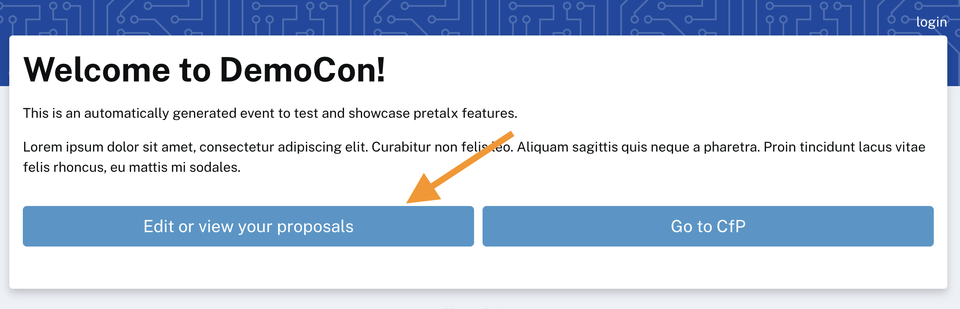
Step 1
Navigate to {todo} and click the Edit or view your proposals button.
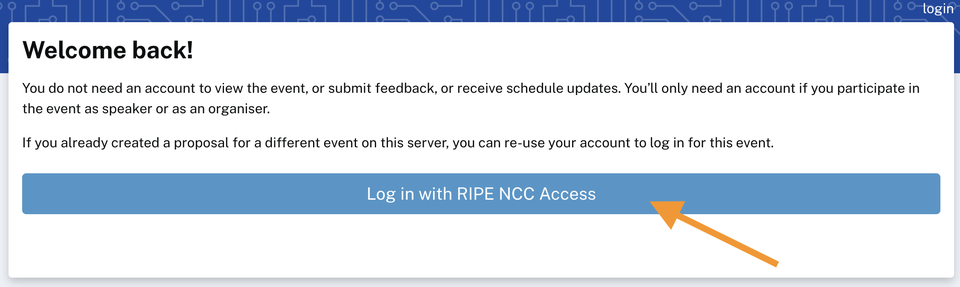
Step 2
Click on Log in with RIPE NCC Access. This requires two-factor authentication!
If you do not have two-factor authentication enabled, follow the instructions on this page to ensure that your account is properly set up.
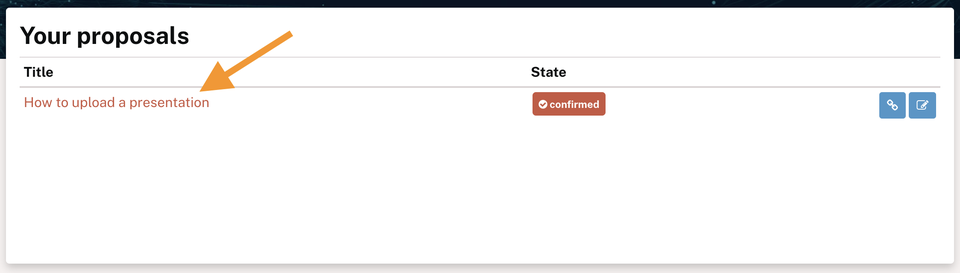
Step 3
Choose the submission you wish to update by clicking on the title of the submission.
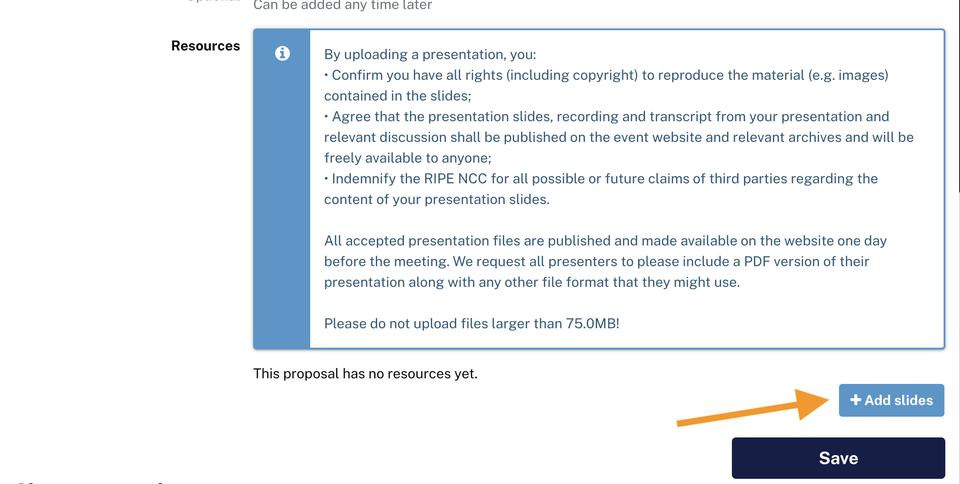
Step 4
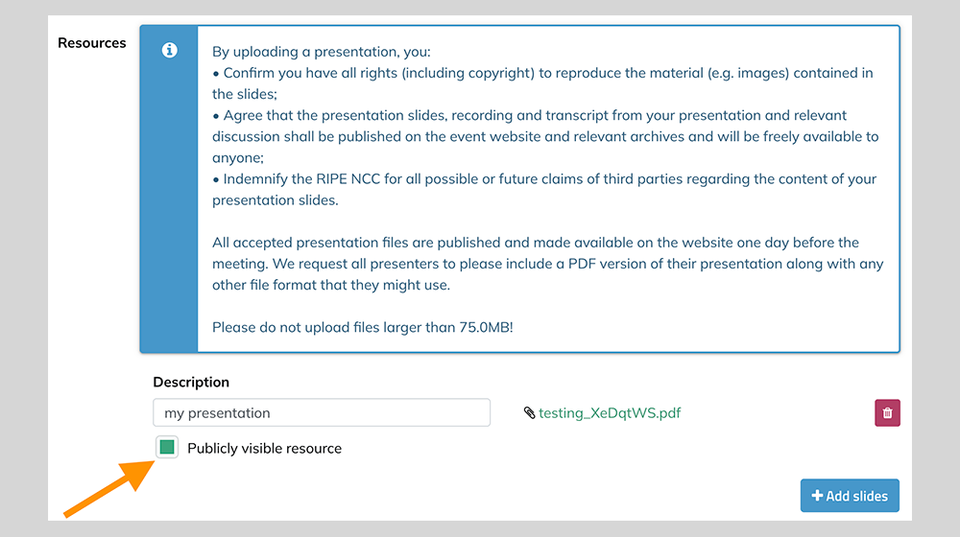
Scroll down the page to the Resources section.
Please read the notice carefully.
To add your presentation slides, click on the + Add slides button on the right.

Step 5
If you have already uploaded your slides and wish to update them, first delete the existing upload. Choose the red button with the trash can icon on the right to delete your old slides.
Upload your new slides using the Add slides button on the right.
Step 6
Publically visible resource
This box can be unchecked for draft materials or private personal notes. However, before delivering your presentation, this box MUST be checked to ensure attendees can see and/or download your final slides from the meeting programme.

Step 7
Finally, click Save to save your changes.